Accessing SIAT Cluster
- Under the Go menu of Siat Cloud Website, Click Siat Cluster
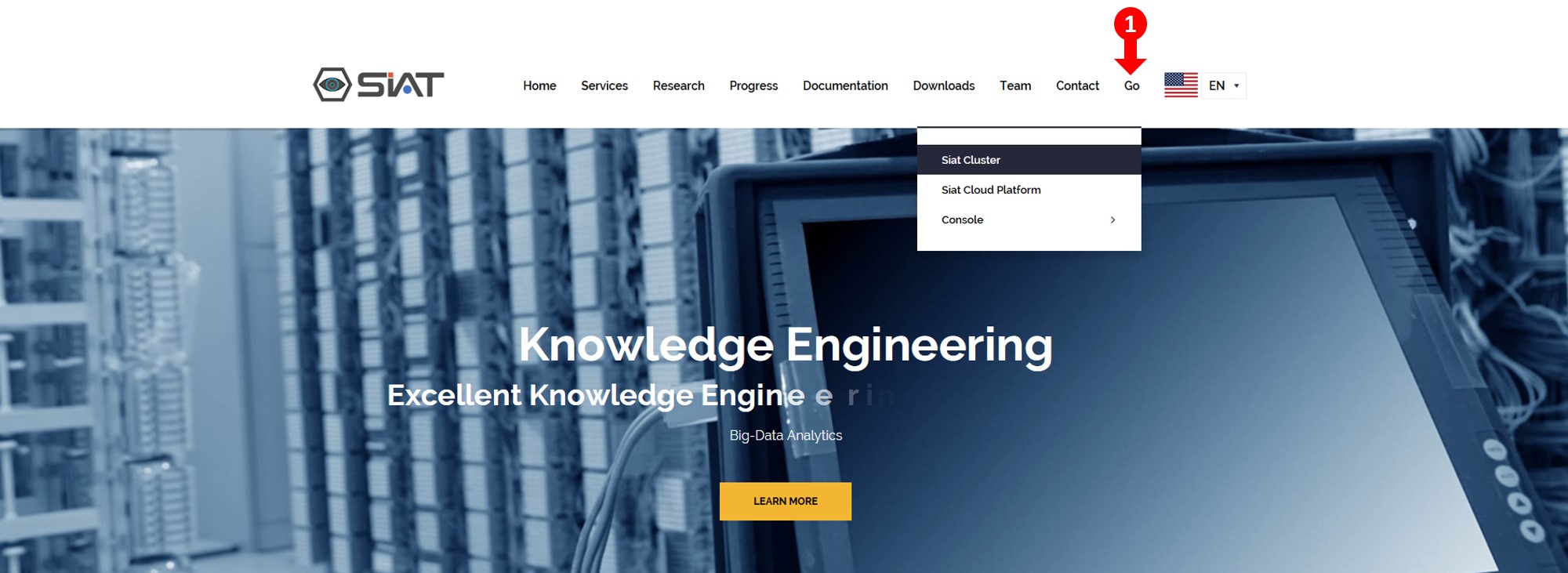
- Login to SIAT cloud with the provided credentials

Accessing SIAT Cluster Consoles
- Under the Go menu of Siat Cloud Website, point to Console, and then click your desired Console
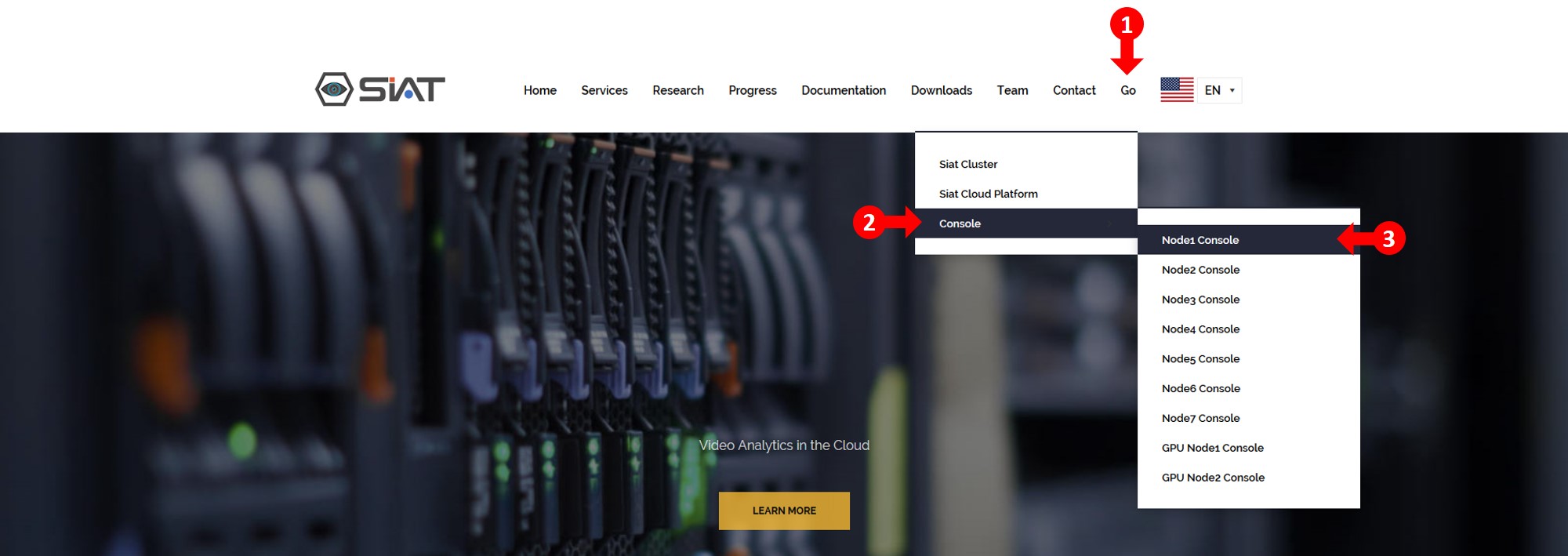
- Login with the provided credentials
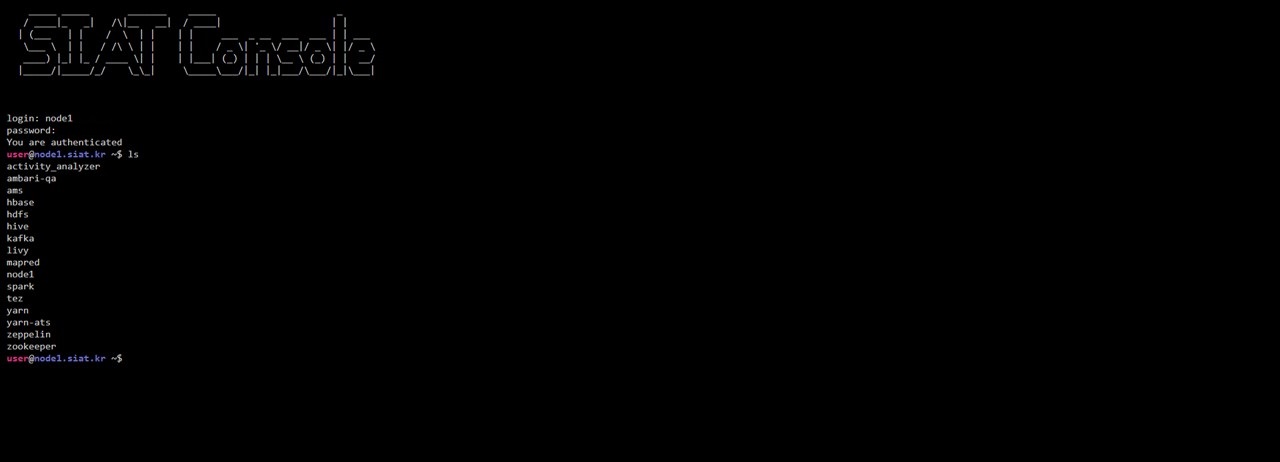
Data Upload
- Click panel icon on the right hand corner, then click Files View
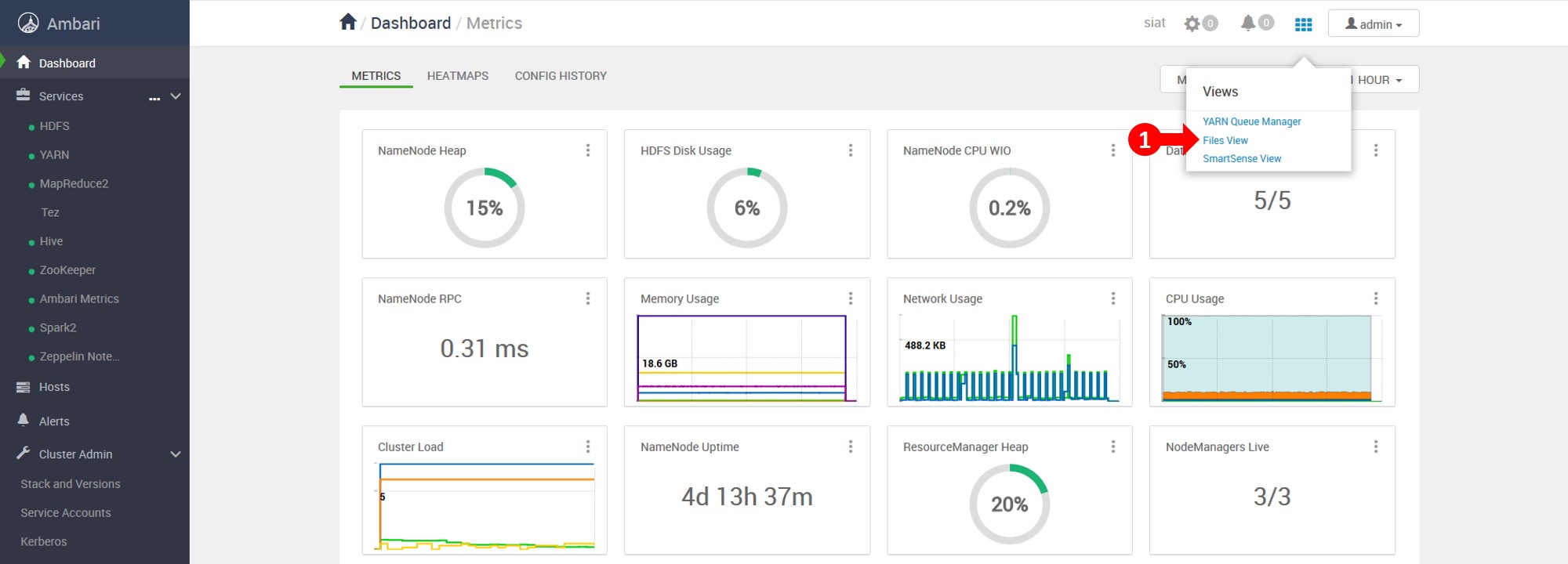
- You will new be redirected to Files View
- Here, you can create, delete, manage files and directories. You can also Upload your data from this panel
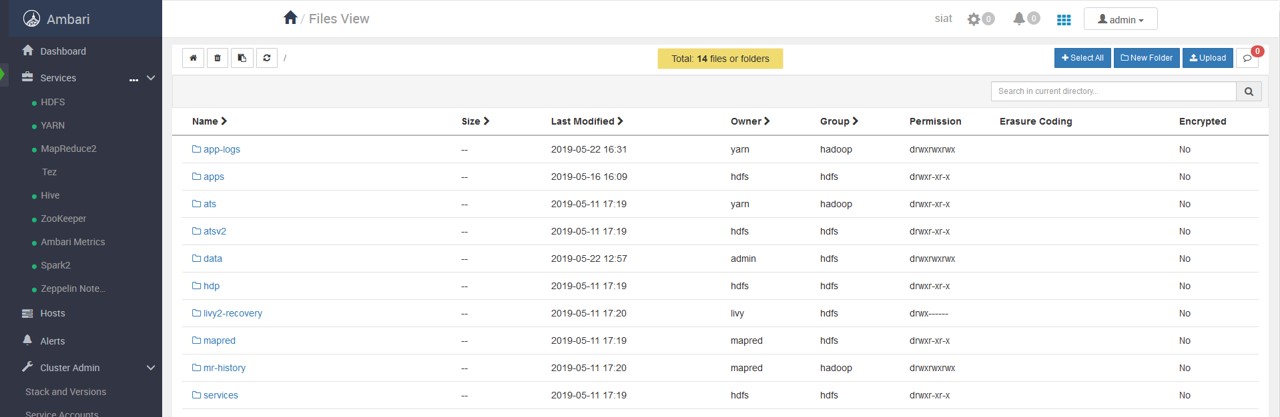
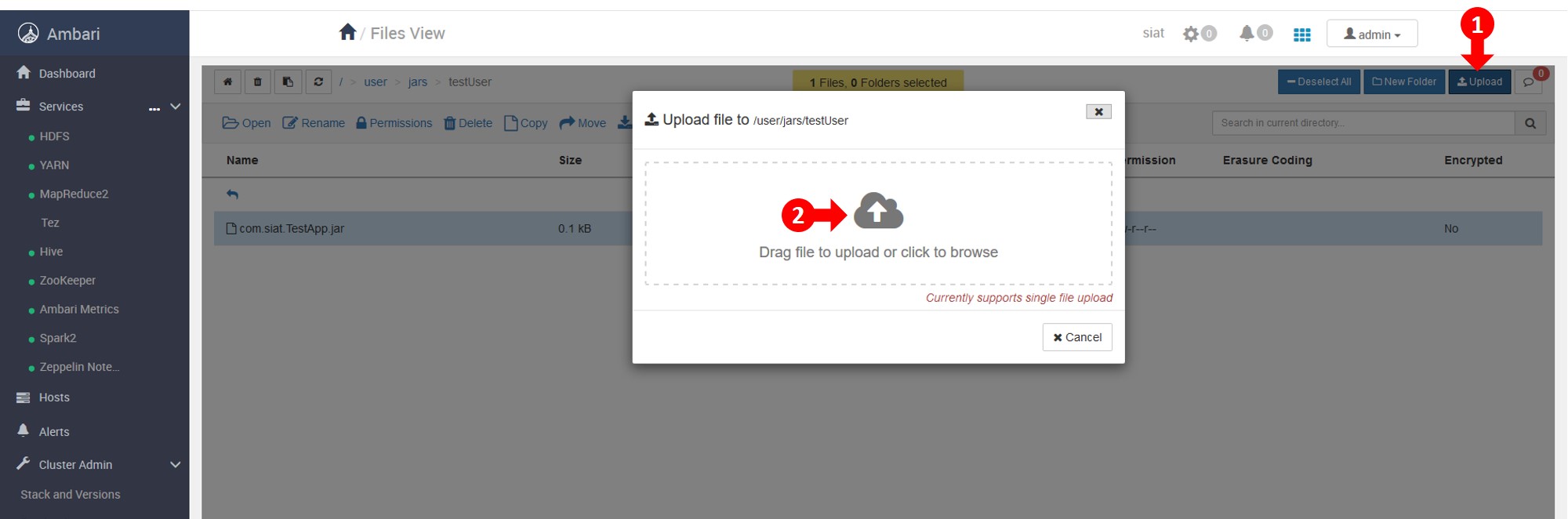
- Navigate to directory where you want to upload data, create a directory if you need
- Click Upload, in the upload panel, select the files from your computer to upload. They will be uploaded
Delete Files
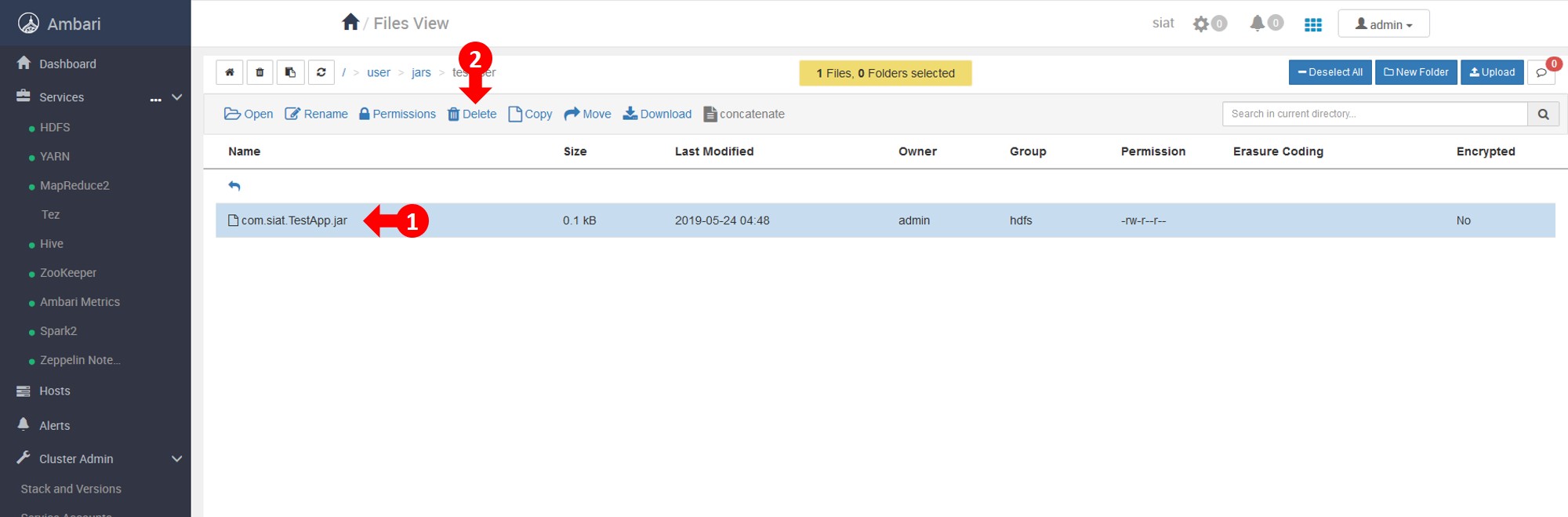
- Select the file you want to delete
- From the toolbar, press delete
Prepare Spark Jobs
- To run your code in distributed environment, create
jar of your code
- Create a folder for yourself with your name under
/usr/jars directory
- Upload the
jar file to your user folder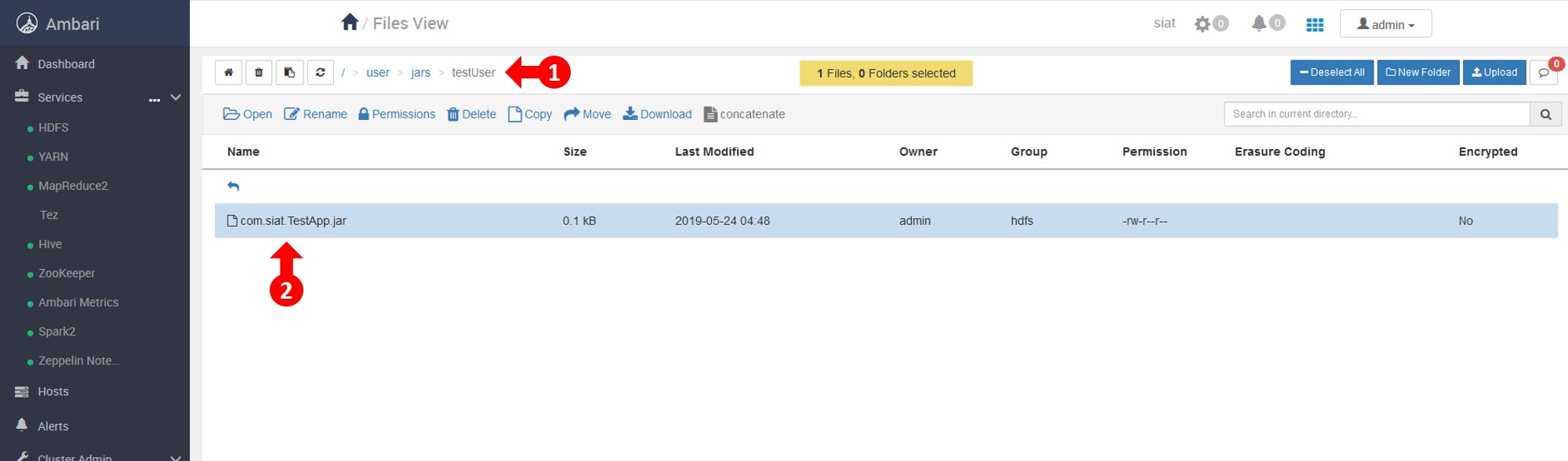
Running Spark Jobs
- Login to console (http://node1.siat.kr/console/) with the provided method earlier
- cd to directory
/user/hdp/current/spark2-client
- Use
./bin/spark-submit to run spark jobs as shown in the example below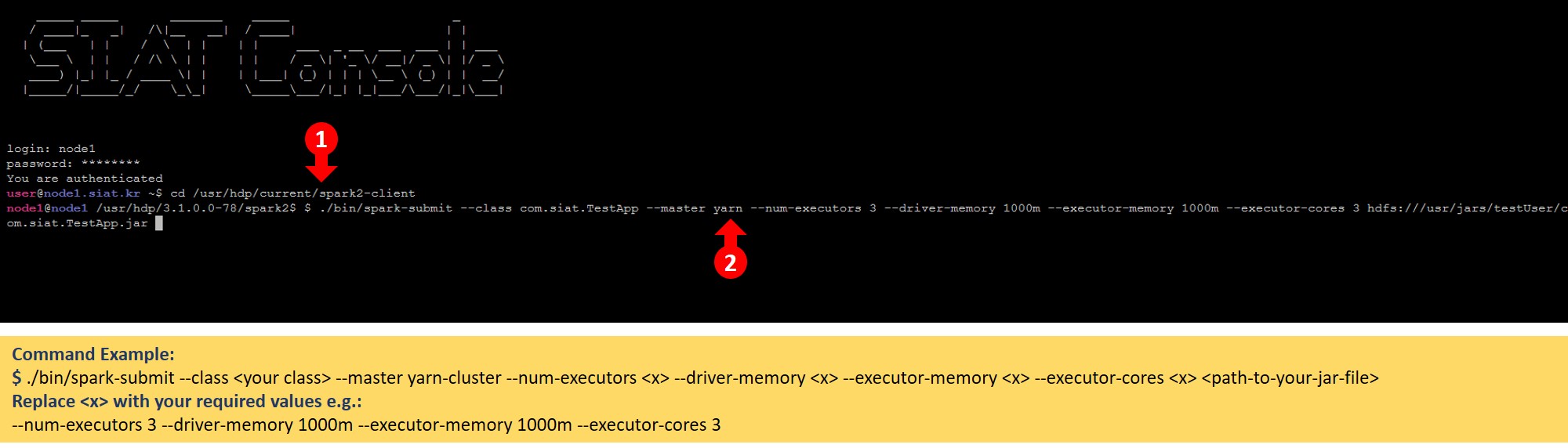
Viewing Spark Jobs
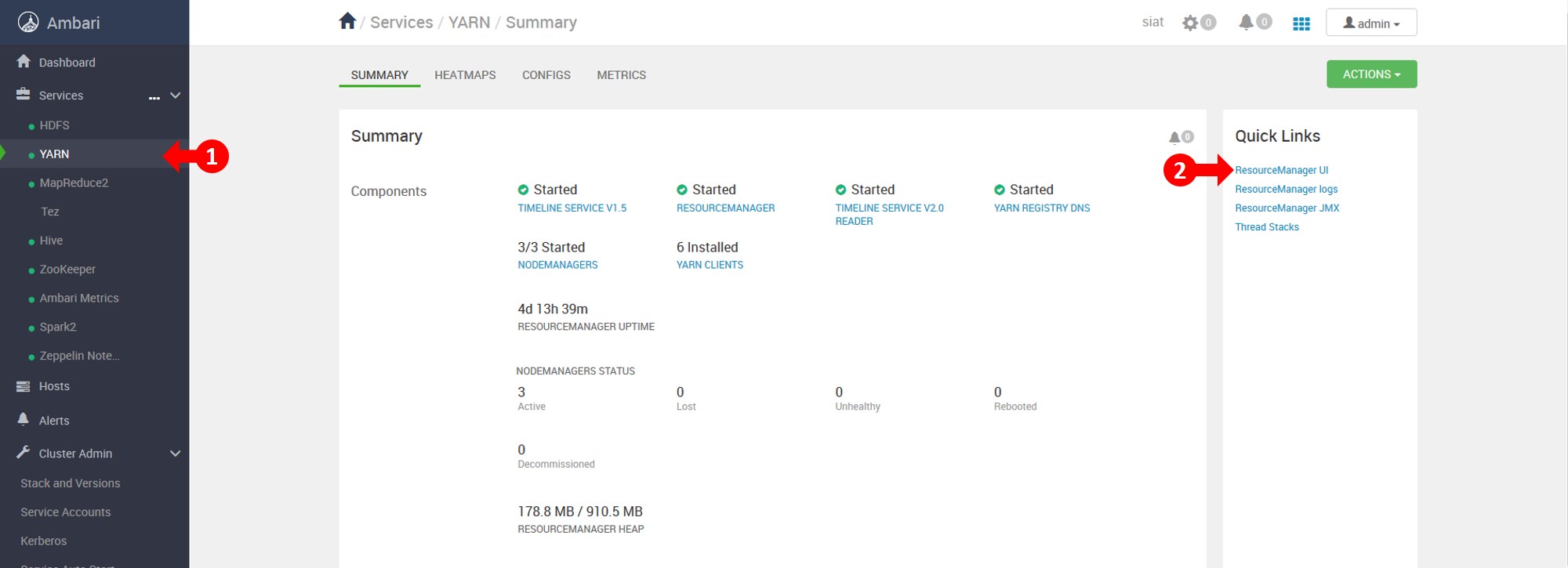
- In the SIAT Cluster Main page, goto Yarn, and then click ResourceManager UI
- From the menu, click Applications. Here you can view and manage all the jobs
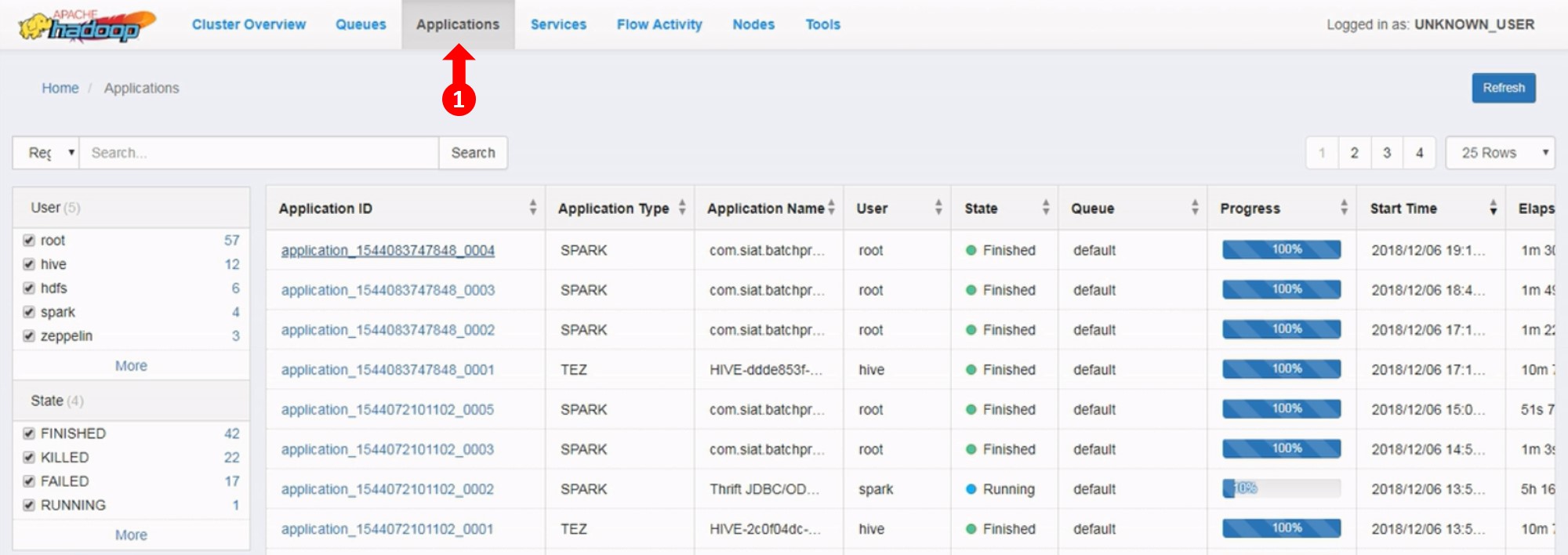
- To view a job detail, click on the job Application ID in the spark jobs list
- To view the history, click History. To view details, click ApplicationMaster
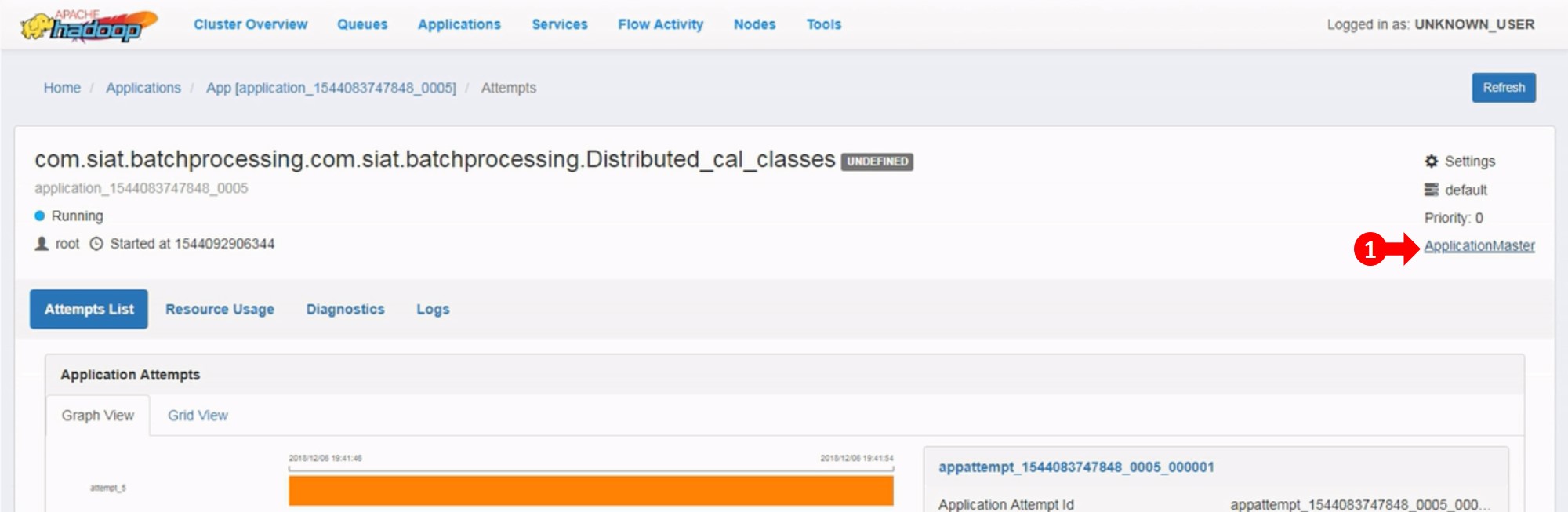
- Now you can view the complete details of the job
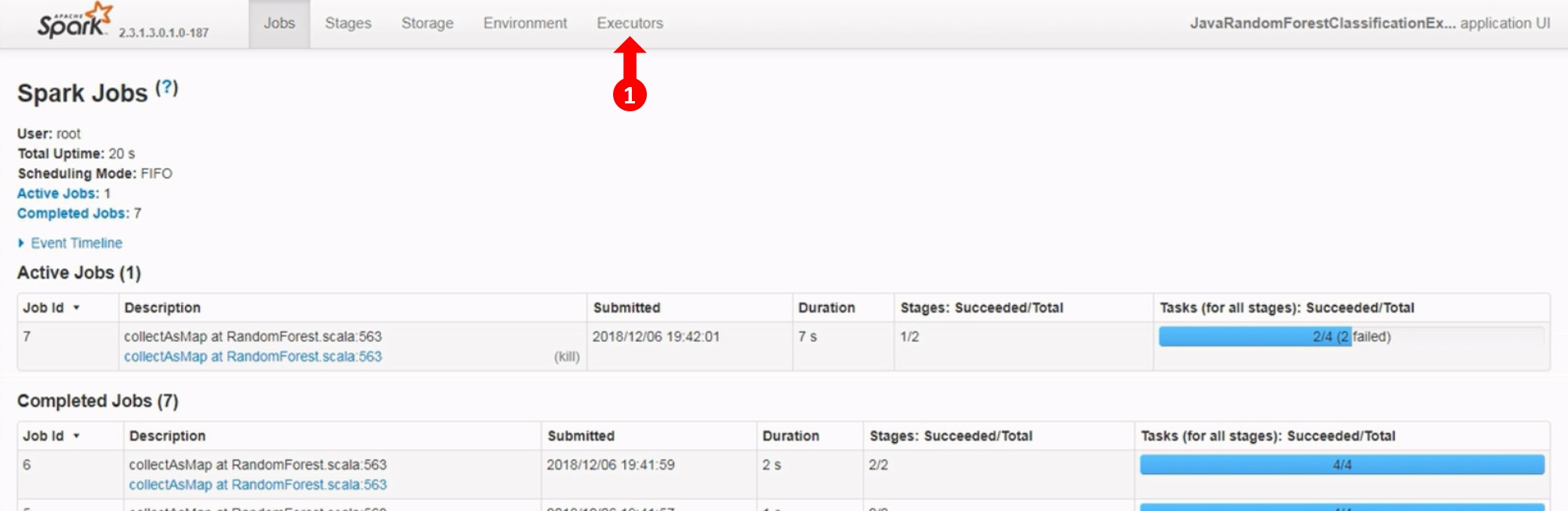
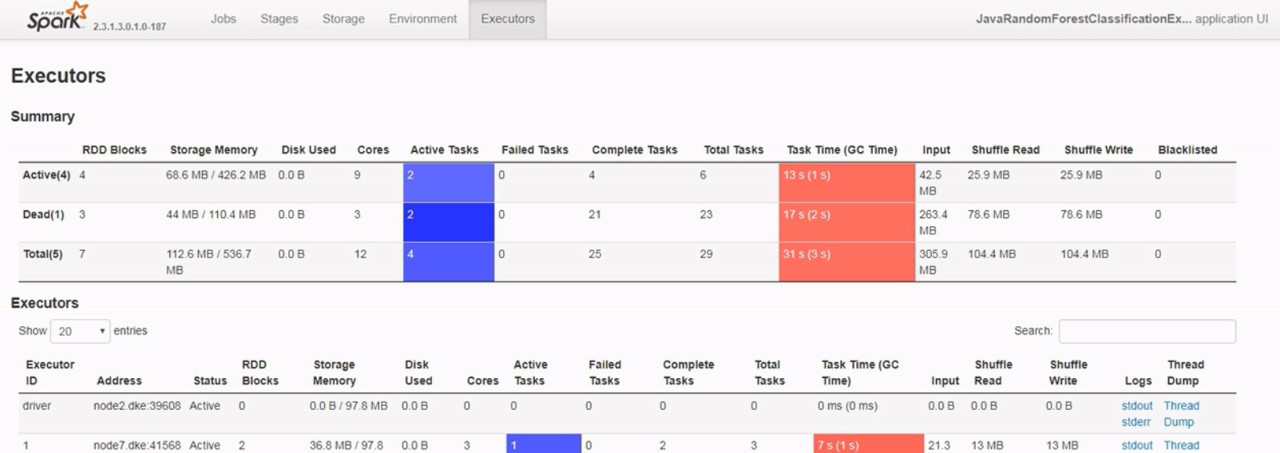
- To view the Executors, click Executors from the menu
- Now you can view all the executors of a particular job
- To view the Log of a particular job, click Log in the Spark Job Details page
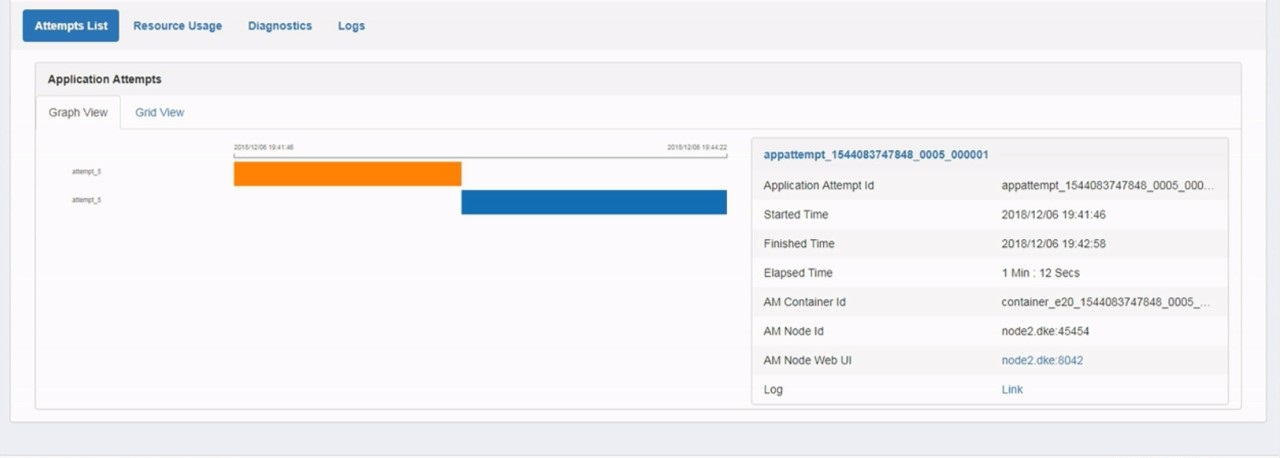
- Now you can view the complete log of a particular Spark Job